Passkeys: Are They Actually More Secure Than Passwords?
The new login button everyone’s seeing, explained in plain English.
You’ve probably seen it by now. You go to log in somewhere and a little prompt pops up: “Create a passkey?” Most people tap “Not now” and move on. Honestly? Fair enough – nobody ever explained what it is.
We recently watched a great video from the YouTube channel Thinking different that tackles this exact question: There’s no way this is actually more secure… right? The host, Jonathan, admits he dodged passkeys for about two years because he didn’t really understand them. Then he finally dove in, set them up across his own accounts, and reported back on what worked and what didn’t. It’s about 11 minutes and well worth a watch.
Here’s our take on what he found, and how we’d apply it to you and your business.
First, Why Passwords Keep Letting Us Down
The video opens with a story most of us know a little too well:
- You create a password. It needs a number. Then a symbol.
- Then you sign up for another service, and another, and another… so you reuse it.
- Then a data breach happens, and your email and that password are out there for anyone to try.
- So you start making little variations – a letter here, a number there – and stashing them in your browser, on a sticky note, in a drawer.
It’s never quite enough. And even a strong password can be phished. Jonathan shares that his own Instagram account got taken over a few years back after an old coworker messaged him asking for his two-factor codes – and he handed them over before he realized what was going on. It happens to smart people every single day.
So What Is a Passkey?
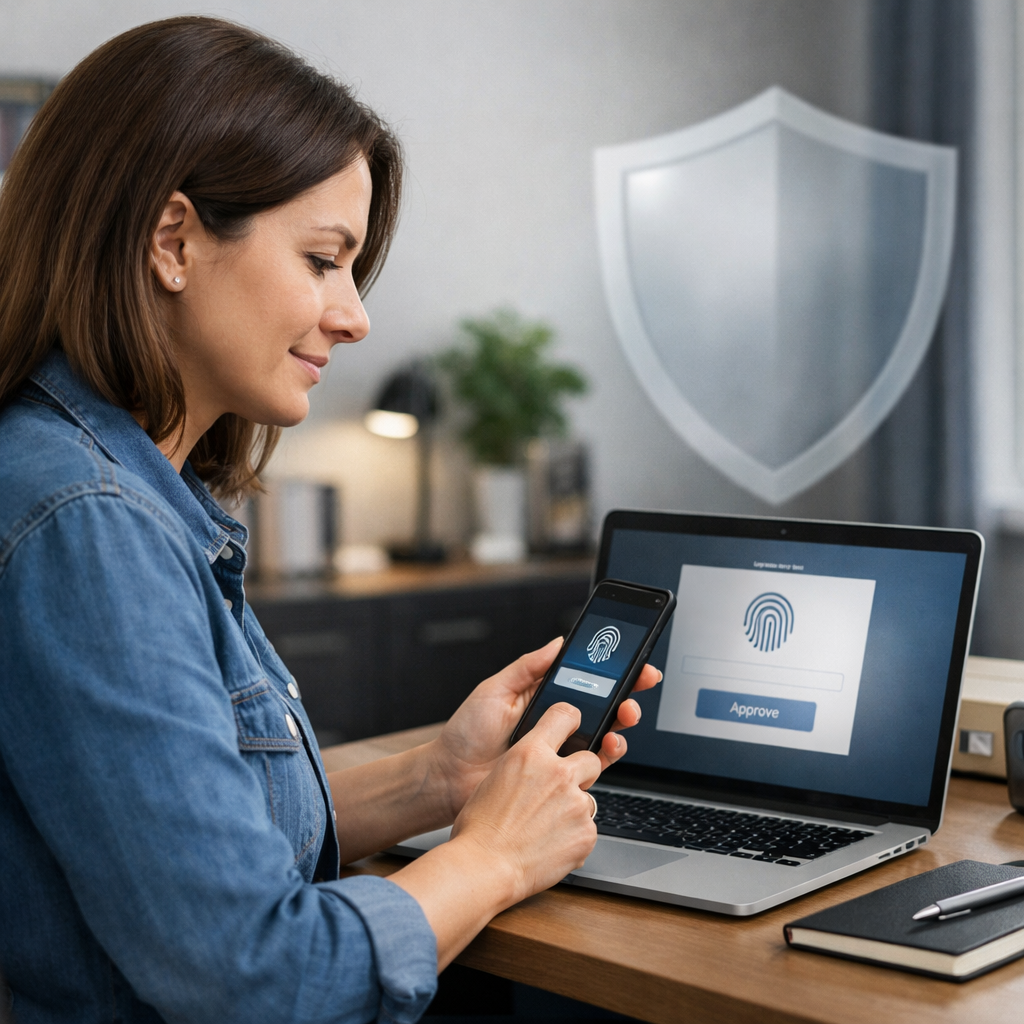
A passkey is a way to sign in that doesn’t involve typing anything at all. When you create one, you’re creating a matched lock and key for that one specific website or app:
- 🔒 The lock (technically the “public key”) lives on the website’s server.
- 🔑 The key (the “private key”) stays with you – on your phone, your computer, or in your password manager.
- ✅ When you sign in, the site does some math behind the scenes to confirm you’ve got the right key. All you do is confirm with your face, fingerprint, or PIN.
No password to remember, nothing to type, and nothing for a scammer to talk you out of over a text message.
Here’s a bonus the video doesn’t dig into much: a passkey is tied to the real website it was created for. If a scammer sends you to a lookalike login page, your passkey simply won’t work there. That makes passkeys one of the best defenses against phishing available today.
The Honest Catch: Passkeys Aren’t Replacing Passwords (Yet)
This is the part we really appreciated – the video isn’t hype. Jonathan saved his passkeys in his password manager and found:
- Support is still pretty thin. Out of 200+ saved logins, he could only create 17 passkeys. A coworker with 700+ logins had just 19.
- It’s not always smooth. Some sites errored out when he tried to create a passkey. Some let him create one but never offered it at login. One worked in Chrome but not in Safari.
- Your password usually still exists. Most sites keep the password as a backup way in. If a hacker already has that password, the passkey alone doesn’t save that account.
His conclusion: passkeys aren’t going to replace passwords anytime soon, so don’t expect them to magically fix everything overnight.
Where Passkeys Really Shine: Replacing the 2FA Hassle
Here’s the part we think a lot of folks are going to love. Jonathan’s biggest win wasn’t ditching passwords – it was ditching the clunky two-factor routine.
A quick rundown of your two-factor options:
- Text message (SMS) codes – convenient, but the weakest option. Phone numbers can be hijacked.
- Authenticator apps – much more secure, but you’re hopping between apps, racing a 30-second timer, or hunting for your phone across the room.
- Passkeys – stored right in your password manager, unlocked with the same fingerprint, face, or PIN you already use, and usually without ever leaving the login page.
More secure and less annoying. That’s a rare combo in IT.
Quick tip from the video: when you get a new phone, double-check that your authenticator app codes transferred over before you wipe the old one.
Security Takes a Little Planning
The biggest takeaway from the video is one we preach all the time: decide on your system, then commit to it. Ask yourself:
- Where will my passwords live?
- What will I use for two-factor codes?
- Where will my passkeys be saved?
Then build everything around those answers. A few habits worth adopting:
- Pick one password manager and use it everywhere. Built-in options like Apple Passwords or Google Password Manager can work, but a dedicated, cross-platform manager gives you more flexibility. (For most of our clients, 1Password is our go-to – here’s why.)
- Use a passphrase for your master password. Four random words with a number tossed in is stronger – and way easier to remember – than “P@ssw0rd1!”.
- Know your skeleton keys. As we like to say, you should only need to remember three passwords: your phone, your email, and your password manager. Make those strong, unique, and protected with MFA so you can always get back in.
- Add passkeys wherever they’re offered. They won’t cover everything yet, but every one you add is one less code to type.
Jonathan jokes that there should be a holiday, like Thanksgiving, where friends and family get together to clean up their digital security. We love that. Block off an evening, grab some snacks, and knock it out together.
Our Take: There’s No One Right Answer
Passkeys are a real step forward – but they’re one tool in the toolbox, not a silver bullet. The right setup for your team depends on your budget, the systems you use, and where you land on the cost vs. security vs. convenience spectrum.
At Ultrex, we’re not tied to any one product or vendor. We’ll look at what you’re already using and what your team will actually stick with, then help you build a setup that fits – whether that’s rolling out a password manager company-wide, turning on passkeys for your Microsoft 365 or Google Workspace accounts, or just tightening up MFA.
And because we don’t bill per ticket or per visit, our retainer clients can call us with “Hey, my bank just asked me to make a passkey – should I?” without worrying about a surprise invoice. That’s exactly the kind of question we want you to ask.
Ready to Make Logging In Safer and Easier?
Whether you’re curious about passkeys, still using “that one password with a number at the end,” or want a hand getting your whole team on a password manager, we’re here to help. Let’s dive in and find the right fit for you – together!
👉 Book a free consultation and let’s make your digital life safer, simpler, and stress-free.
Video credit: “There’s no way this is actually more secure… right?” by Thinking different on YouTube.