
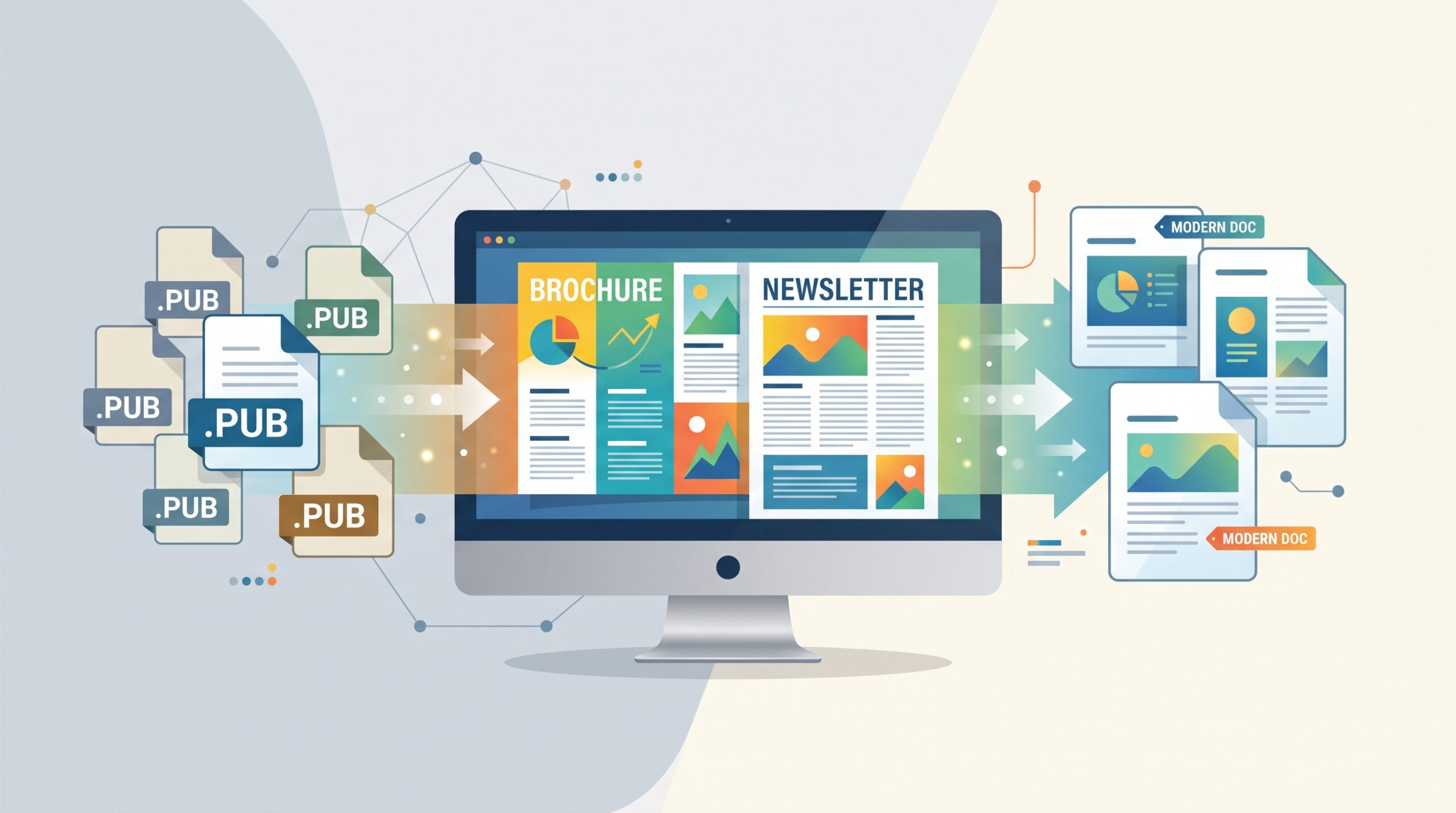
Microsoft Publisher Is Retiring: How to Keep Your Old Files and What to Use Next
Don’t panic. Your designs aren’t lost.
If you rely on Microsoft Publisher to create brochures, flyers, or newsletters, you might have heard the news: Microsoft announced that Publisher is reaching its official end of life in October 2026.
Normally, when software hits retirement, it just stops getting security updates. But this retirement has a catch:
- If you purchased a one-time standalone Office license (LTSC): The app will stop getting updates on October 13, 2026, but it will continue to open and run on your computer.
- If you use Microsoft 365 (the subscription version): Publisher won’t just stop getting updates on October 1, 2026 – it will cease working entirely. When you click the app icon, it simply will not open anymore.
Because most businesses and non-profits now use Microsoft 365 subscriptions, this leaves a lot of people asking two big questions:
- How do I open, view, or rescue my existing
.pubfiles without racing against the clock? - What should we use moving forward to design new materials?
Here is the good news: you do not need to spend hours scrambling to export every single .pub file before October. There are simple, cost-effective tools ready to step in.
Question 1: How Do I Open My Existing Publisher Files?
The Best Tool: LibreOffice
If you need to open, edit, or extract text and graphics from your legacy .pub or .mspub files, your best option is LibreOffice.
LibreOffice is a completely free, open-source office suite maintained by a non-profit foundation. It doesn’t bundle unnecessary AI add-ons, require a subscription, or expire.
How to Get It and Open Your Files:
- Download: Head to libreoffice.org and select Download Now.
- Select your version: Most standard Windows computers use the x86_64 download (unless your device specifically runs a Snapdragon ARM processor).
- Install: Run the downloaded installer and follow the standard on-screen prompts.
- Open your file: Right-click any
.pubfile on your computer, select Open with, and choose LibreOffice Draw.
What to Expect:
LibreOffice Draw opens Publisher files directly – even if Microsoft Publisher has stopped working or was never installed on your machine.
While complex layouts or elements like QR codes might not transfer with 100% precision, it gives you immediate access to your content, wording, and images so your historical work remains usable and editable.
Question 2: What Should We Use to Create New Designs?
The Modern Go-To: Canva
While LibreOffice is great for rescuing old files, it isn’t necessarily the most intuitive tool for building sleek modern designs from scratch.
For creating new brochures, postcards, social graphics, and flyers, Canva has become the industry standard.
Why Canva Works Well:
- Zero-cost starting point: Canva offers a robust free tier with access to thousands of templates, graphics, and stock photos.
- Budget-friendly upgrades: If you need brand kits, premium assets, and advanced export features, Canva Pro is approximately $18/month (or $145/year).
- Built for non-designers: You get access to over a million templates, eliminating the need to build layouts from scratch.
Note on importing: Canva does not import raw .pub files directly. However, if you export your Publisher work as a PDF or image, Canva can import those layouts smoothly. Third-party services claim to convert .pub files into Canva directly, but their expensive monthly subscriptions rarely justify the cost for small businesses or non-profits.
Tailoring the Right Fit for Your Organization
At Ultrex IT, we don’t believe in one-size-fits-all IT answers. We don’t tie ourselves to any single vendor or software platform, because every organization lands somewhere different on the cost, security, and convenience spectrum.
Whether sticking with free open-source tools like LibreOffice makes the most sense for your budget, or moving your team to a modern creative suite like Canva fits your workflow better, there is no single “right” answer. We help you find the solution that fits your exact operational needs.
Best of all, for our retainer clients:
- No per-ticket or per-visit billing: Migration planning, software guidance, and walk-throughs like this are all included as part of your regular retainer.
- Hands-on assistance: If you want help installing LibreOffice, testing your archived files, or setting up Canva for your team, we’re here to walk through it with you step-by-step.
If you have questions about the Publisher transition or want hands-on support getting your team prepared, reach out to us at IT@ultrex.com or book a session directly through ultrex.com under IT Bookings.